Step-by-Step Guide
Generate Diagrams in Sections
Learn each feature step by step.
1. Generate Diagrams
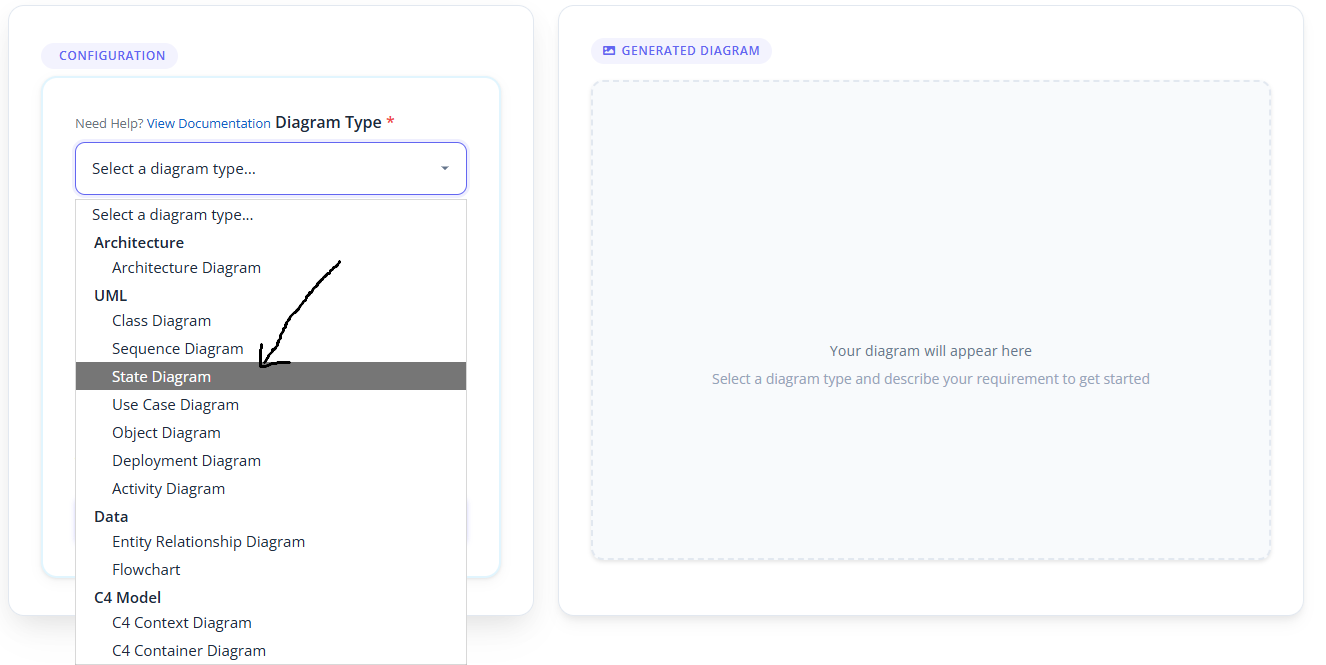
Step 1.1 — Select Type: Choose from the dropdown (Class, Sequence, ER, C4, Flowchart, etc.).
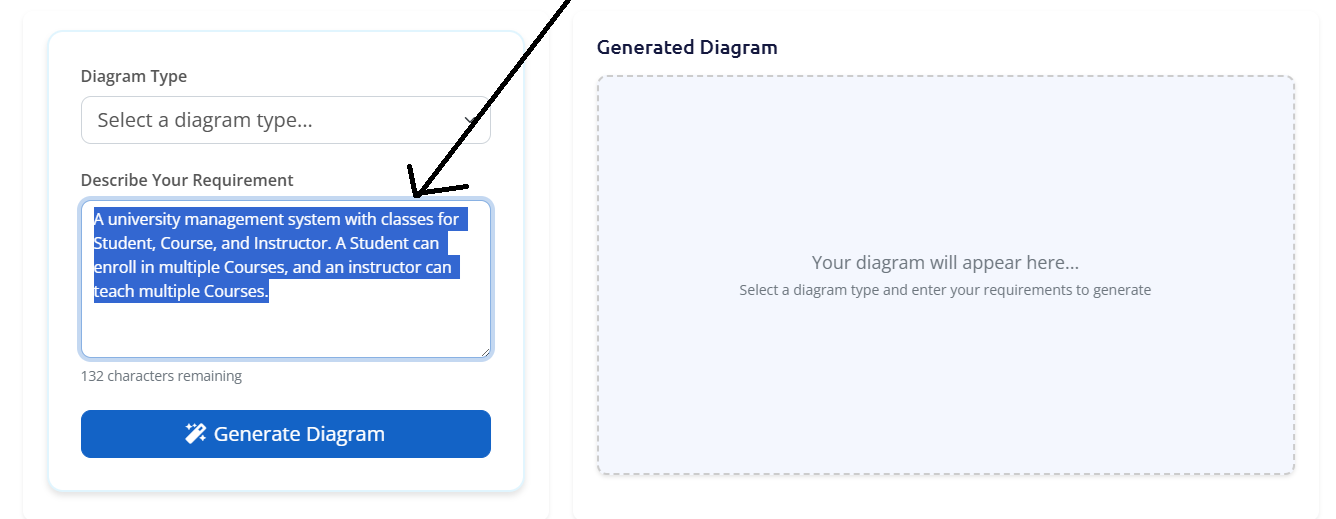
Step 1.2 — Write Prompt: Describe the system or process in plain English.
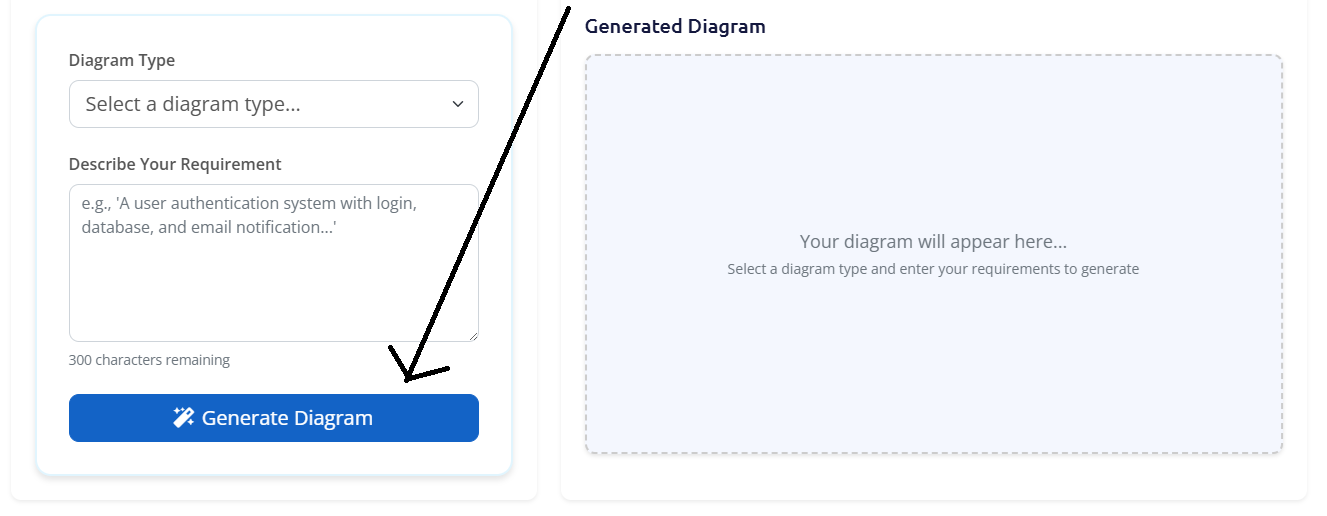
Step 1.3 — Click Generate: The AI creates your diagram within seconds.
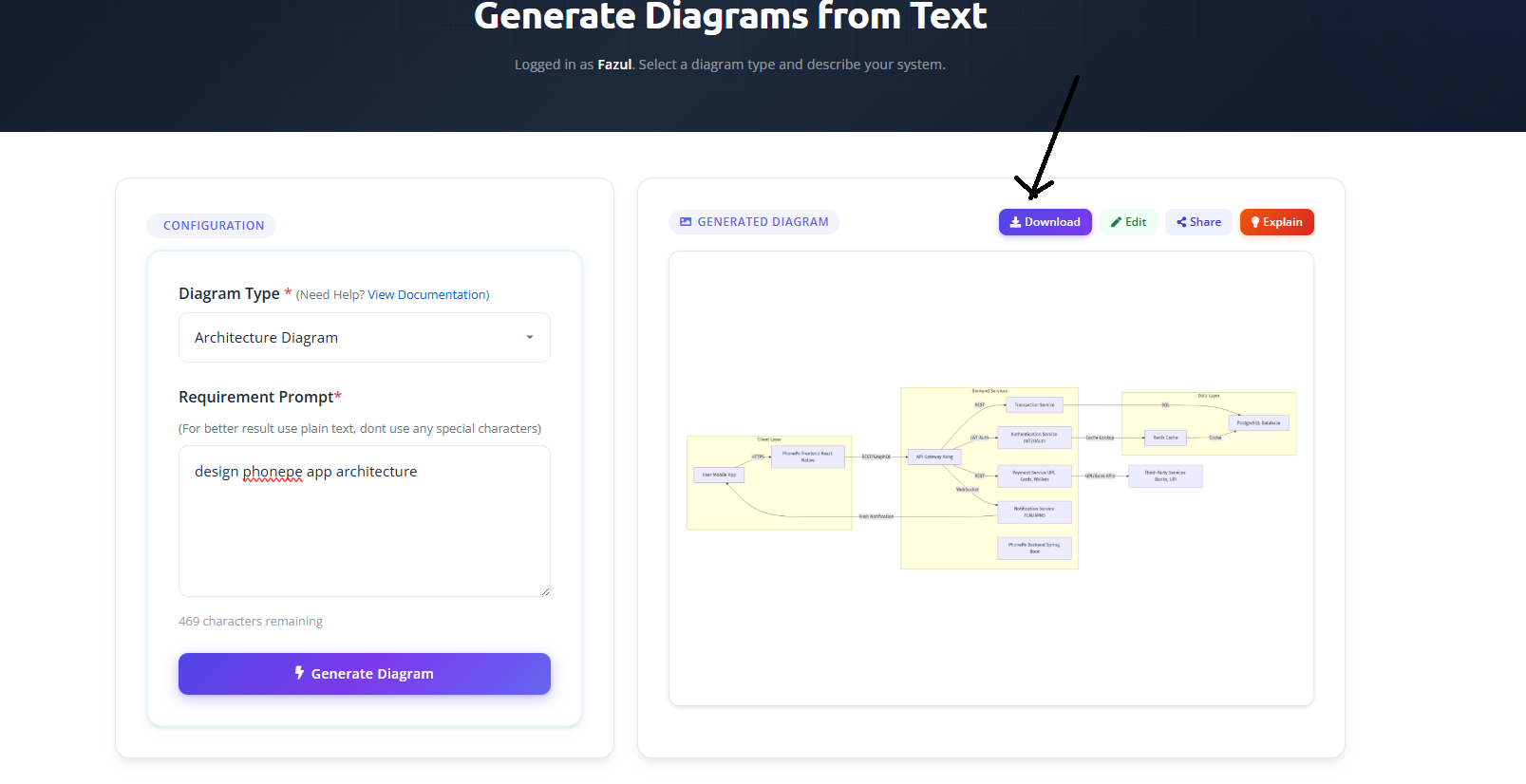
2. Download Diagram
Once generated, your diagram appears on screen. Click the Download button to save it as PNG, JPEG, SVG, or PDF.
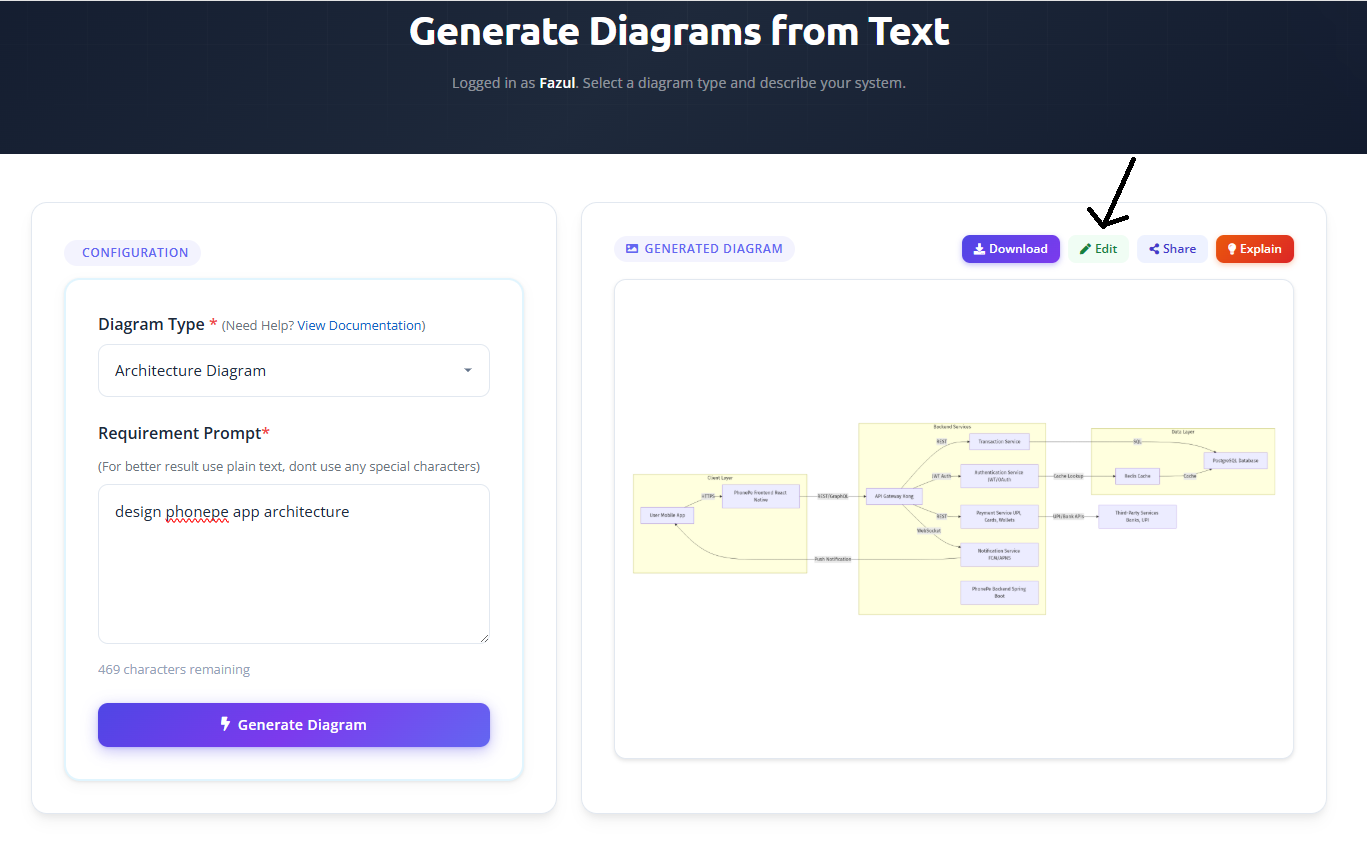
3. Edit Diagram
Click the Edit button to open your diagram in the built-in Draw.io editor. Make changes, add elements, or adjust the layout, then save the updated version.
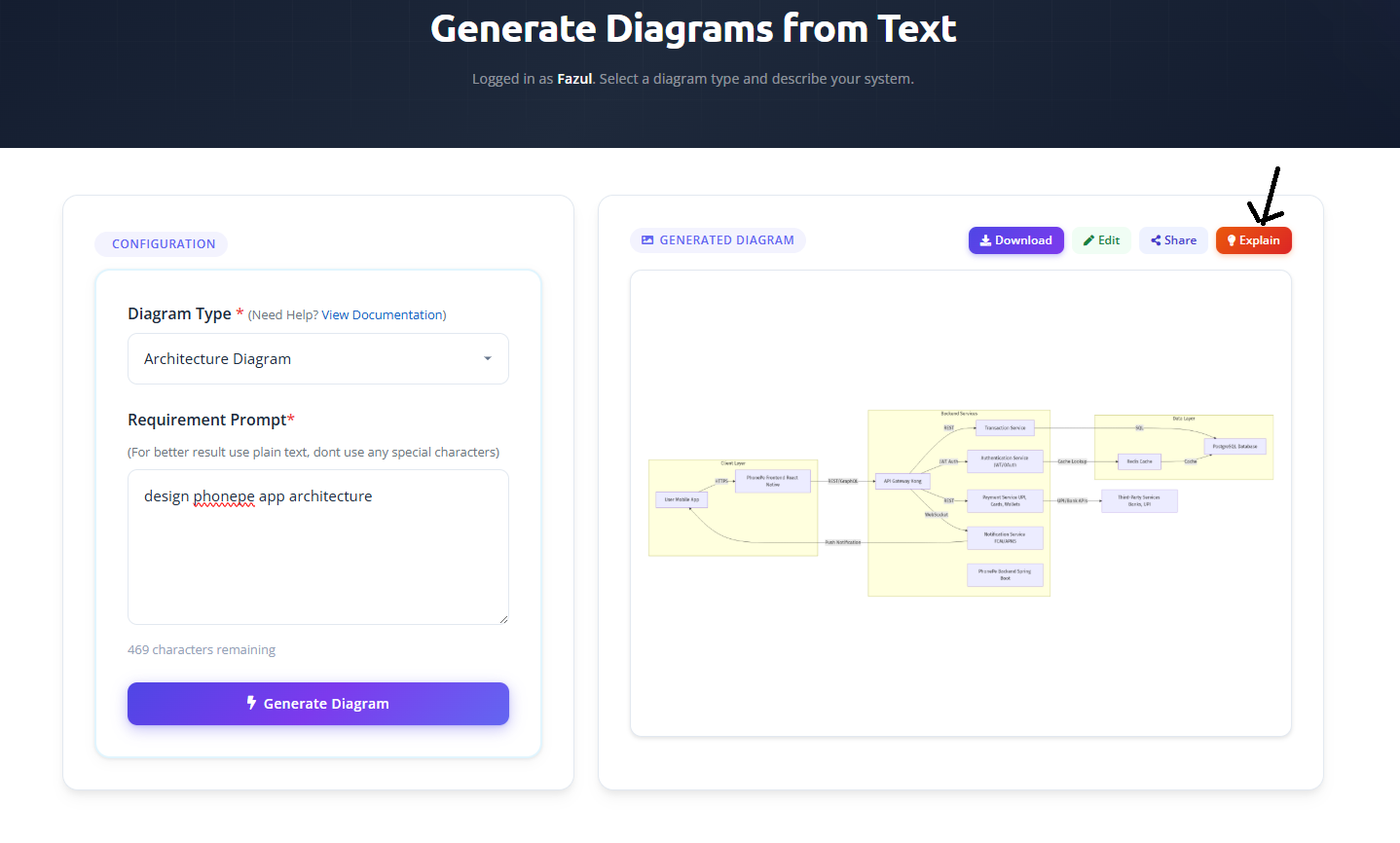
4. Export Document
Click the Explain button to get a step-by-step breakdown of your diagram in plain English. Download the explanation as a PDF, DOCX, or plain text file.
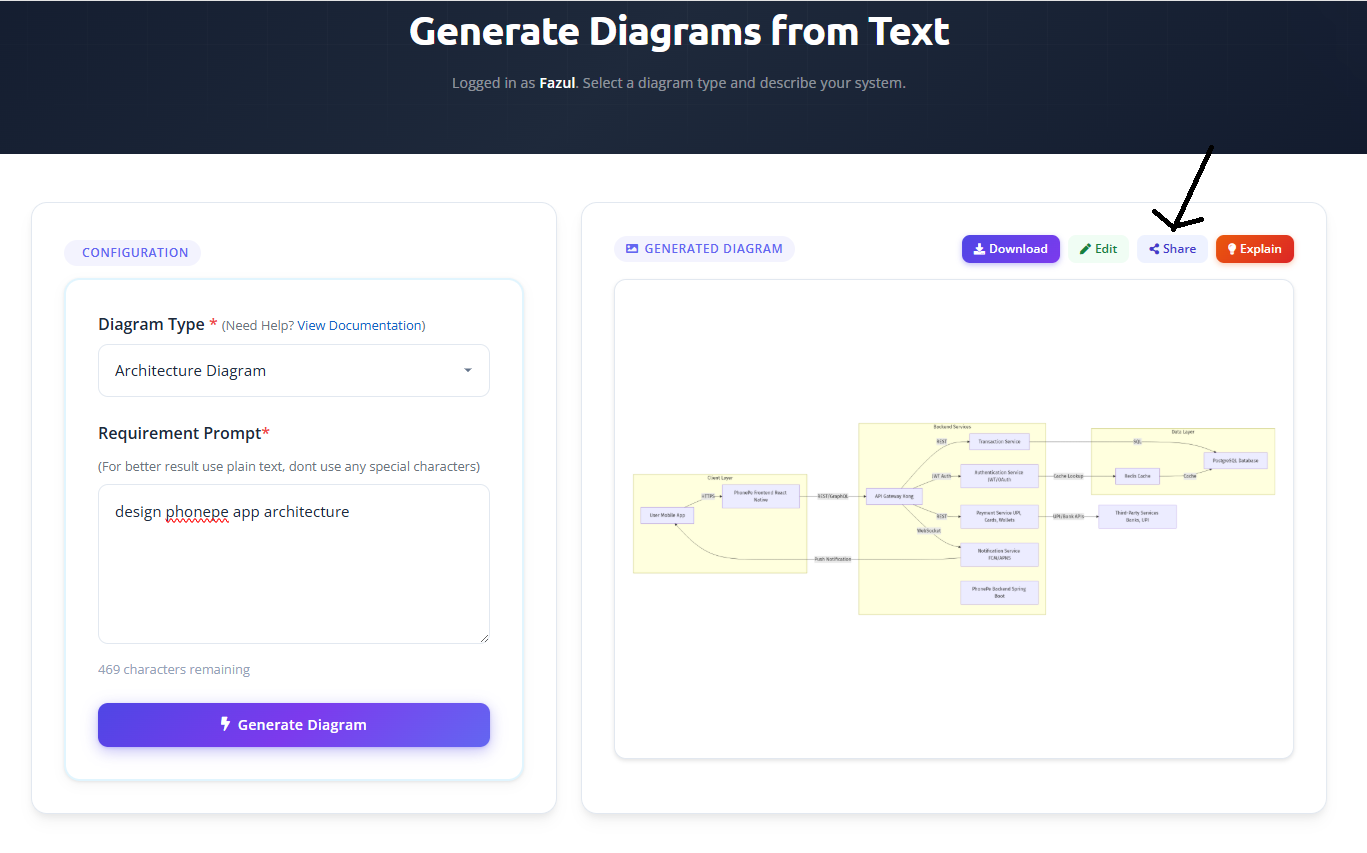
5. Share Feature
Click the Share button to get a unique link. Share it with your team on Twitter, Facebook, LinkedIn, WhatsApp, or Telegram.
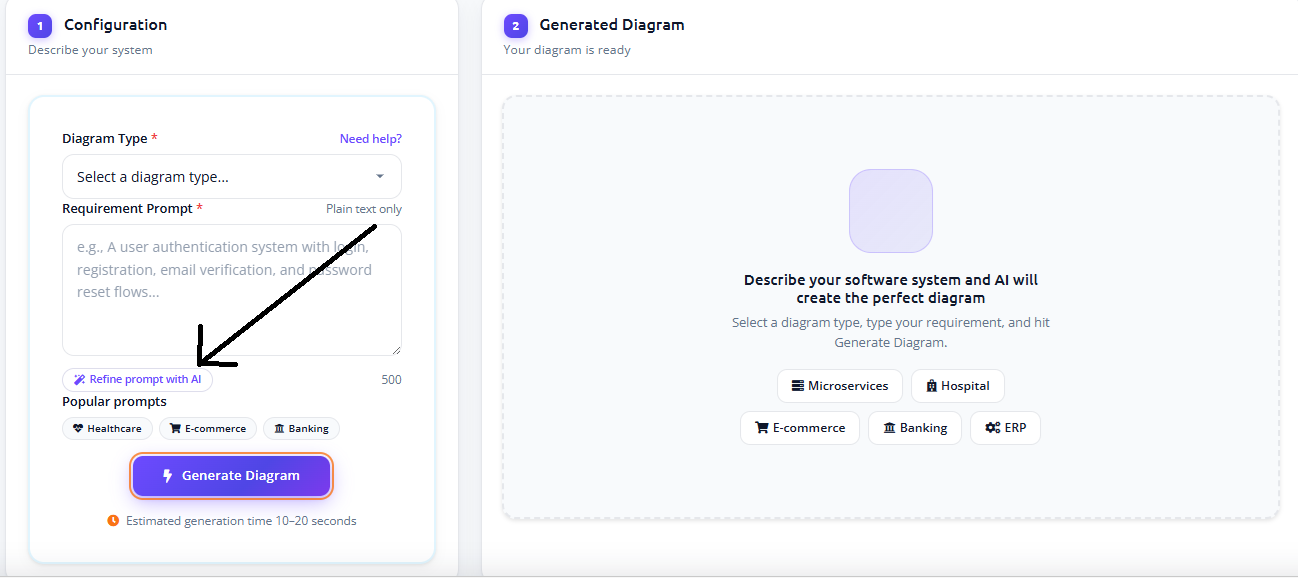
6. Refine prompt with AI
Click the Refine prompt with AI button to polish your requirement text before generating. The refined text replaces the prompt automatically.